Superfast display (loading) of data into your UI (WinForms, MVC or ASP.NET)
While this post compares the WinForms datagridview with a 3rd party (syncfusion) Grid Control for windows, the same comparison also applies to grid controls in the MVC and ASP.NET webforms world. The same set of 3rd party controls (discussed in this post) are available in each of those environments.
Business Data and Grids
Business data tends to organize itself into rows and columns (witness the success of Lotus123, Excel and other spreadsheet software).
Windows DataGridView
For the .NET UI developer, the Windows DataGridView is indispensible in that it provides a quick way to organize business data into rows and columns. Sorting, Paging etc. are usually either built in or fairly straightforward to implement. Going beyond the basic sorting (e.g. multiple column sort) or basic grouping (e.g. multiple column groups) calls for some serious investment in time. More importantly, as we shall see in this post, going beyond just a few 100 KBs of bound data, leads to serious performance degradation – making the DataGridView unsuitable for enterprise level grid/tabular data applications.
Object Binding
Object binding refers to the ability to bind a control to a custom data type (your domain objects). In pre-object binding days, one would bind a control directly to the raw data (e.g. an int CustomerID and a string CustomerName retrieved from the datasource). This was a cumbersome approach since most of the data could logically be grouped into custom data types (e.g. Customer). The User Interface was mainly interested in displaying the domain types (e.g. Customer) and less interested in native data types such as ints and strings. This led to the development of object-binding as an alternative to older raw data-binding.
A typical datagridview application that uses object binding will involve the following steps:
- Fetching Data (usually using ADO.NET and a DataReader/DataTable/DataSet combination).
- Storing the fetched data in a local collection (typically an IList<T> where T represents your custom domain object e.g. IList<Customer>).
- Converting the IList<Customer> to a BindingList<Customer>
- Binding the BindingList to the datagridview
For a detailed walkthrough of custom object binding to a datagridview, see this MSDN magazine article.
Bound versus Virtual Display Modes
By default, most datagridview developers use a Display mode called Bound. In this display mode, the data in the grid is automatically bound to the data in the datasource.
This means that the grid view control handles all aspects of fetching the data as well as displaying the data. While this offers convenience, it is the main reason for slower display performance on the DGV.
Fortunately, there is another display mode available to address this problem.
This mode is known as the virtual display mode. In this display mode, instead of being bound to the entire datasource, the grid is essentially bound to a small subset (a cached portion) of the datasource. This small subset is the set of data should match the data that is visible on the grid (the exact amount of data is under the programmer’s control). Whenever a user wants to see more data (scrolls the grid), that data is fetched from the datasource, placed into cache – and returned to the grid from the cache. This way, only a small amount of data is ever bound to the grid – and even that only through a memory based cache. This alleviates a lot of issues with the Windows DataGridView – including slow UI refreshes, locked UIs etc.
Windows DataGridView’s Virtual Display Mode
While the DataGridView control is flexible enough to display any IList as its datasource, it starts running into some performance problems for large volumes of data.
The Virtual mode in the Windows DataGridView control was designed for just such a purpose – to handle refreshes of large volumes of data. It does this by postponing the rendering of the entire data all at once – and only renders a fixed number of rows and columns at a time. As one tries to scroll down (or up), new data is rendered at that very instant – using predefined events (CellValueNeeded event in the DataGridView).
// Enable virtual mode on windows datagridview
this.dataGridView1.VirtualMode = true;
// Connect the virtual-mode events (scrolling on the datagridview) to event handlers.
this.dataGridView1.CellValueNeeded += new DataGridViewCellValueEventHandler(dataGridView1_CellValueNeeded);
For even larger volumes of data..
While the virtual display mode in the DataGridView offers an option to display lots of data without slowing down refresh rates, even this powerful mode starts showing sluggishness for larger amounts of data (several hundred MBs of data).
What is one to do if one needs to continue displaying data in a grid – and the underlying datasource consists of several hundred(s) MBs of data?
Enter Syncfusion
Syncfusion is a 3rd Party UI library – which contains several advanced controls in its toolbox. It offers a GridControl with all the basic grid display capabilities.
In addition to the basic gridcontrol, it offers something called a GridGroupingControl – which is a GridControl on steroids.
(NOTE: The difference between the GridGroupingControl and the GridControl in Syncfusion is basically in the set of features – the GridGroupingControl has a richer set of features. Performance-wise, they are both comparable).
The rest of this post summarizes some of my initial experiences as a Syncfusion developer – both in terms of performance as well as built-in capabilities.
Syncfusion Grid Grouping Control Features: Grouping by Multiple Columns, Nested Grids (Hierarchical data)
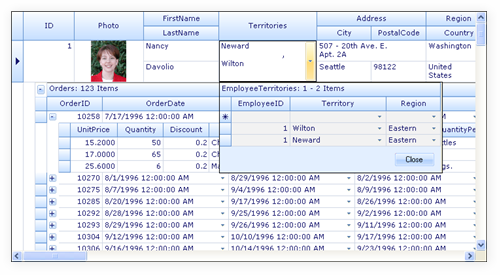
Grouping by multiple columns
If one is interested in grouping by not one – but multiple columns, the grouping grid does it with just a couple of lines of code.
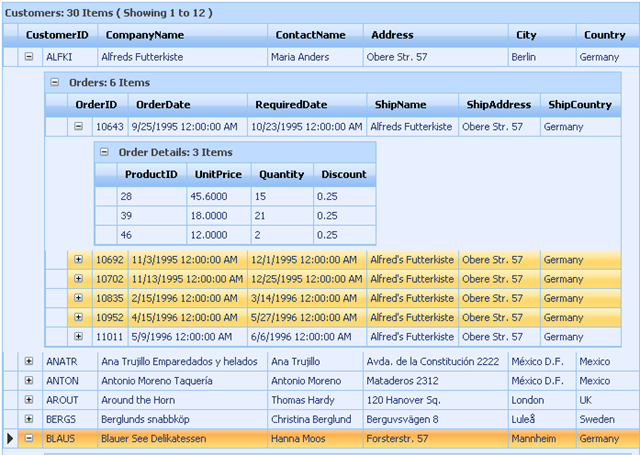
Nested grids
(to display hierarchical data for example), Syncfusion’s GridGroupingControl provides that out of the box as well (see screenshot above). Note that one can build the same nested table functionality in the Windows DataGridView (using the example shown here).
Sorting by more than one column
Syncfusion GridGroupingControl provides this type of sorting out of the box as well (whereas one needs to custom build this in the Windows DataGridView as shown in this article).
Syncfusion Grid Control (and Grid Grouping Control) – Virtual mode and Performance
However, the main reason our team chose Syncfusion was simple – performance. Syncfusion provides a GridControl class which also has a virtual mode built in. The virtual mode in Syncfusion’s GridControl works in a similar fashion to Windows DataGridView – by rendering more rows and columns as the user tries to scroll up or down on the grid. The actual events that Syncfusion uses are QueryCellInfo and QueryRowCount (full source code available at the of this post). The snippet below shows the main events that the gridControl needs to have handled.
// Enable virtual mode.
this.dataGridView1.VirtualMode = true;
// the two relevant events for handling the scroll event on the grid control
this.gridControl1.QueryCellInfo += new Syncfusion.Windows.Forms.Grid.GridQueryCellInfoEventHandler(this.gridControl1_QueryCellInfo);
this.gridControl1.QueryRowCount += new Syncfusion.Windows.Forms.Grid.GridRowColCountEventHandler(this.gridControl1_QueryRowCount);
Sample Experiment – Comparing Display Speeds – DataGridView versus Syncfusion Grid
The source code (included below) uses a simple ArrayList (of Customer objects) – and lets you experiment with the performance of the DataGridView as the number of objects grows. In the sample code, the list of Customers is set to a size of 10,000. At this size, the performance difference between the Windows DatagridView and Syncfusion’s GridControl are already visible. If you try a larger size list, the differences will be even more evident.
Fetch Time versus Load Time
The real test of how fast data is displayed on the grid – is the load time (the time taken to display a set of data). We are less concerned here with the data retrieval (fetch) time (for e.g. – retrieving data from an ADO.NET source) – than with the time it takes to display thousands of rows of data. When one runs the two grids (WinForms dgv and Syncfusion’s gridcontrol) side by side, for the same set of data (see the sample solution below), one can see by just plain visual inspection, the Windows DataGridView loads (displays) a lot slower than Syncfusion’s GridControl.
By only loading a small subset of data at a time, the virtual mode eliminates the need to bind to large datasets, thereby providing speedier displays. One doesn’t lose out on the large set of data – since scrolling will fetch as much data as needed – on demand.
Summary
This article (based on my experience as a Syncfusion developer) shows a side by side performance experiment of the WinForms DataGridView and Syncfusion’s GridControl. Using each of these grids to display the exact same data (10,000 unique customer data records), one can see the different data loading (displaying) speeds. WinForms’ DataGridView starts deteriorating in performance at just a few hundred KBs of display data – in spite of using its own fastest display mode – the virtual display mode.
Syncfusion’s GridControl offers a faster (superfast) alternative to the WinForms DataGridView. In addition to speed, the grid control offers sophisticated UI manipulation features such as nested grids (nested tables), pivot tables, multiple column sorts etc. Other vendors (Infragistics, Telerik etc.) offer similar grid controls, however, in our initial performance centric comparisons, syncfusion’s grid control seemed to be a clear winner.
If your business data is in the tens of hundreds of MBs (as ours was) and needs to be bound to UI controls, chances are you will outgrow the built-in WinForms (and asp.net) controls very quickly. You will need to start looking at 3rd party vendors like Syncfusion and Infragistics to provide you with the UI performance that your application needs.
Source Code
Download Source Code (Need to download and install Syncfusion Essential Studio Windows Forms Edition 7.3.X or above)
About the Author
Anuj Varma is a Microsoft .NET architect specializing in high-performance applications. His specific expertise in the .NET framework architecture as well as 3rd party controls (Syncfusion development) built around the framework, makes him a sought after performance expert for .NET applications. Anuj’s experience as a Syncfusion developer makes him a sought after Syncfusion and UI expert. He continues to specialize in Syncfusion’s Essential Suite for building sophisticated web and desktop applications. Most recently, he has worked on an ASP.NET revamp of dell.com and several UPSTREAM applications in the oil and gas industry. All these applications were built with performance (UI performance as well as Data Access Layer performance) as a key driver.
Anuj holds professional certifications in Google Cloud, AWS as well as certifications in Docker and App Performance Tools such as New Relic. He specializes in Cloud Security, Data Encryption and Container Technologies.
Anuj Varma – who has written 1261 posts on Anuj Varma, Hands-On Technology Architect, Clean Air Activist.


Leave a Reply